
Zitcha Product Update-Inventory Updates to Make Booking Clearer
We’ve rolled out a set of improvements to Inventory that give you better visibility into utilisation, clearer timeline behaviour, and more control when filtering ad sets.
These updates are focused on accuracy and transparency, especially when working across multiple placements or managing busy timelines.
Including:
- Accurate timeline display for multi-placement ad sets
- Inventory utilisation visibility for Network users
- Clearer availability indicators for Advertisers
- A new Status filter in the Inventory view
- Improvements to the Inventory filter bar layout
Some features are live now, with others rolling out behind a feature flag.
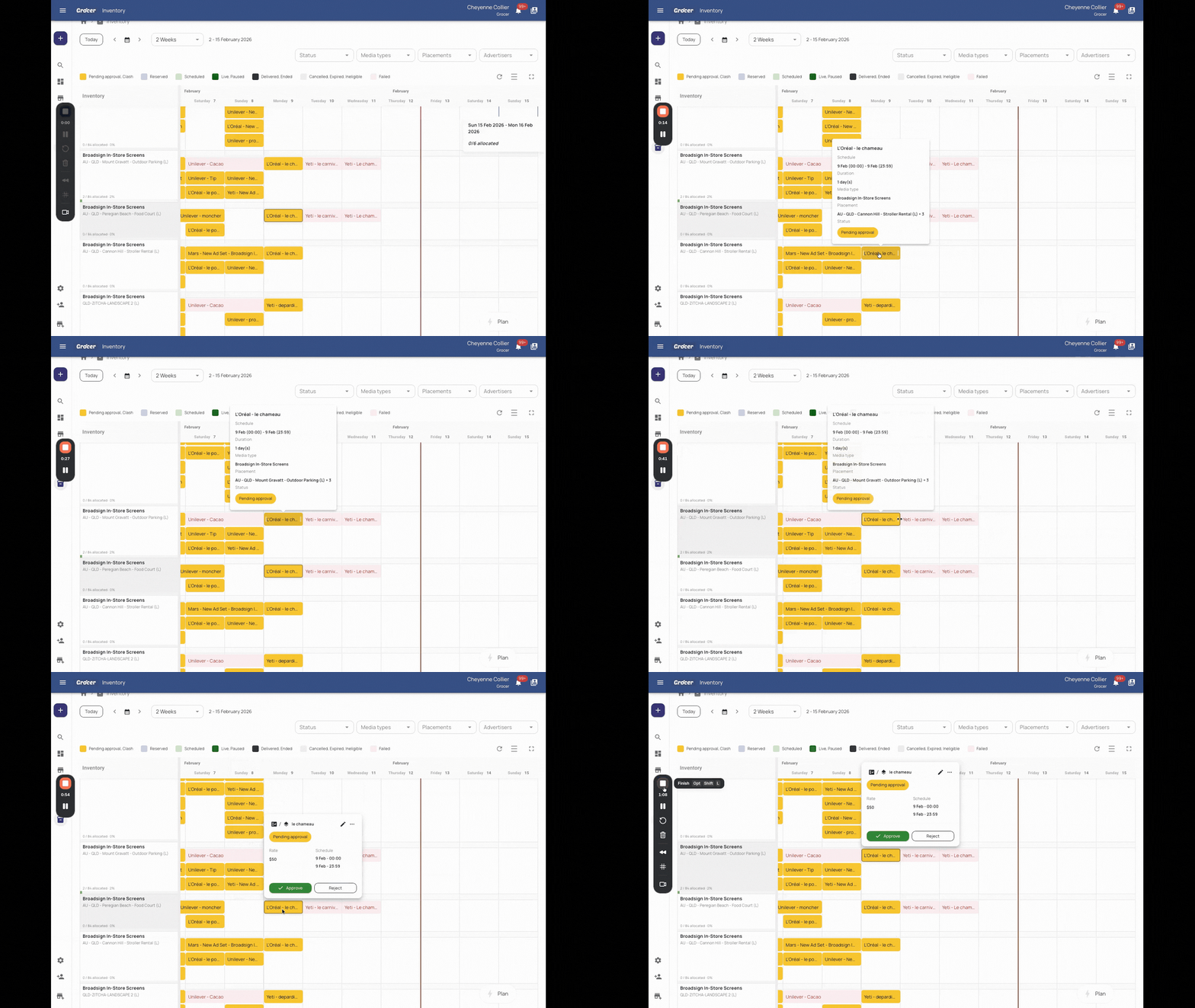
Multi-placement ad sets now display correctly in the timeline
Ad sets that span multiple placements are now accurately represented in the Inventory timeline.
Previously, a multi-placement ad set would only appear against one of its selected placements. This has now been fixed.
Ad sets now:
- Appear across all selected placements in the Inventory timeline
- Reflect updates consistently when edited from any associated placement
- Maintain synced behaviour across the full booking
This ensures the timeline reflects reality, particularly for campaigns running across multiple spaces.
Release status: Live now
Inventory utilisation visibility
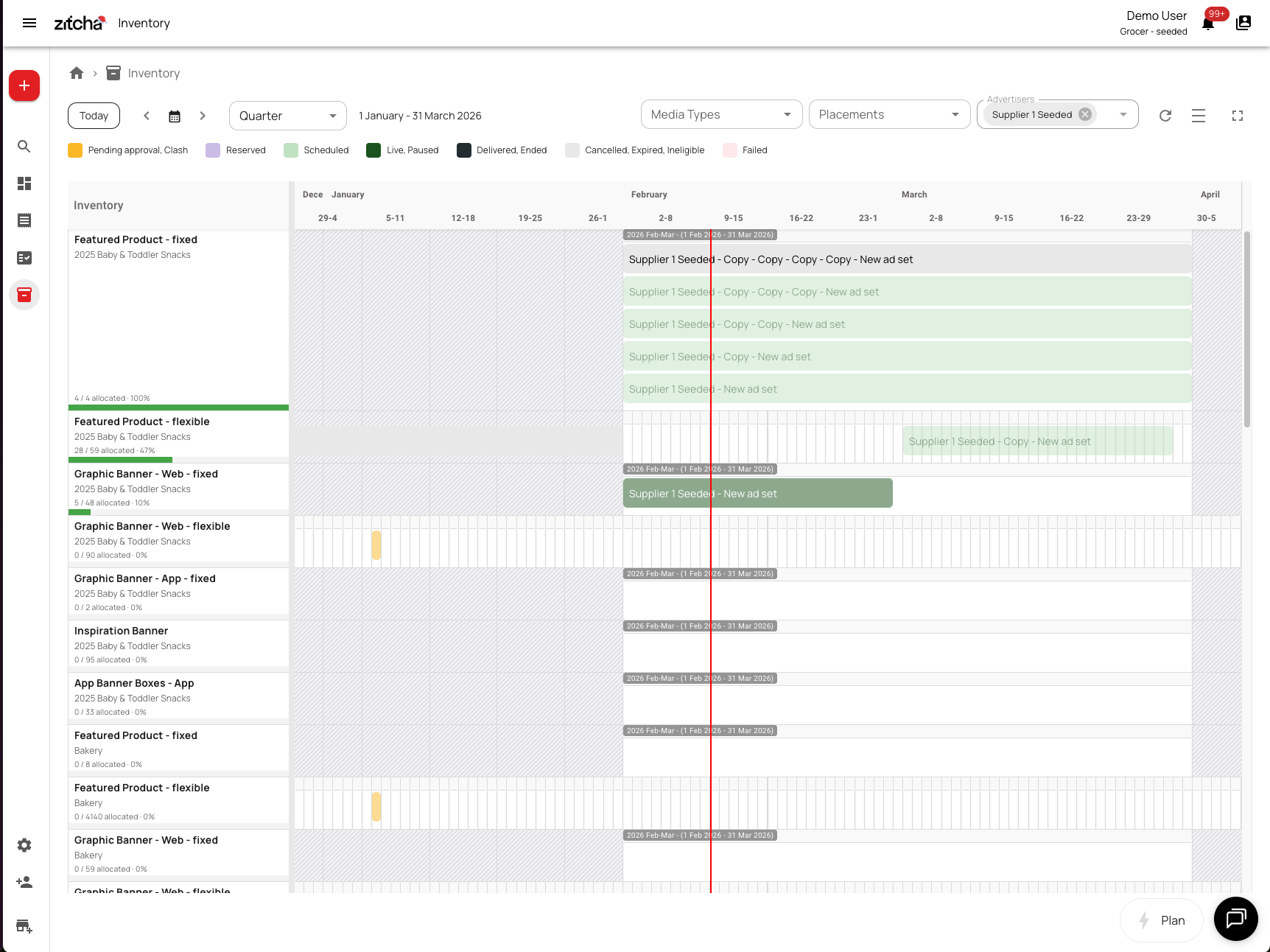
Network users can now view inventory utilisation directly on the Inventory page.
Each inventory item shows:
- Allocation status, for example:
4 / 4 allocated · 100% - A visual timeline with the individual ad sets booked against it
For unlimited inventory items, allocation is displayed as:
X allocated · Unlimited
This makes it easier to understand capacity at a glance, without needing to calculate or cross-reference manually.
Release status: Live
What Advertisers see
Advertisers see a slightly different view.
They can view:
- Available inventory per item, for example:
8 available - Their own booked ad sets in the timeline
They do not see overall allocation across the network.
This keeps visibility appropriate to user type, while still helping advertisers understand availability and booking context.
New: Status filter in Inventory
We’ve added a new Status filter to the Inventory timeline, along with improvements to the filter bar layout.
What’s new
- A new Status dropdown in the Inventory filter bar
- Ability to filter by one or multiple statuses at once
- Available statuses include:
- Pending Approval
- Scheduled
- Reserved
- Live
- Paused
- Delivered
- Expired
- Ended
- Failed
- Ineligible
- Clashed (for networks only)
You can combine statuses, for example “Live” and “Paused”, to narrow down exactly what you need.
The timeline view auto-refreshes when ad set statuses change.
Works alongside existing filters such as media space, location, and advertiser.
Release status: Live now
Filter bar layout improvements
Alongside the new Status filter, we’ve refined the filter bar layout to improve usability across screen sizes.
Updates include:
- Responsive flex layout, filters wrap cleanly on smaller screens
- Consistent filter widths for a neater appearance
- Multi-select dropdowns now show a compact “+N” indicator when multiple options are selected
Whether you’re working on a large monitor or a laptop, the layout adapts more cleanly.
Why these changes were made
These updates are about making Inventory more transparent and easier to work with at scale.
You can now:
- See true utilisation without manual checks
- Trust that multi-placement ad sets are accurately reflected
- Filter large timelines more efficiently
- Understand availability without leaving the page
If you have feedback once you’ve used the new view, we’d love to hear it.